How to Embed an Instagram Feed on Your Website
How to embed an Instagram feed on your website: native embeds vs widgets, platform steps for WordPress and Shopify, performance cost, and GDPR consent.


You embed an Instagram feed on your website by either pasting Instagram’s native embed code for individual posts or by installing a widget that connects to your account and pulls your latest content automatically. The native method is free but limited to single posts, while a widget gives you a live, updating feed with layout choices and platform controls. This guide walks through both approaches, covers the steps for WordPress, Shopify and Webflow, and addresses the two things every other guide skips: the real performance cost and the GDPR consent question.
What Does Embedding an Instagram Feed Actually Mean?
Embedding an Instagram feed means displaying your Instagram content directly on your own website, so visitors see your latest posts without leaving the page or opening the Instagram app.

There are two fundamentally different ways to do this, and understanding the distinction saves you from picking the wrong one. The first is a native embed: you take a single Instagram post, grab its embed code from Instagram, and paste that HTML into your page. It renders that one post, frozen in time, and it won’t change unless you go back and swap it manually. The second is a widget: a small script connects to your Instagram account through the API, pulls your latest posts, and renders them as a grid, carousel, masonry wall or slider that updates itself every time you publish something new.
Both approaches have legitimate use cases. A single featured post inside a blog article works fine with a native embed, while a living feed that keeps your homepage current requires a widget. This article covers both fairly and addresses the two things those product pages leave out: what happens to your page speed and how GDPR applies to embedded social content.
How Does Instagram’s Native Embed Code Work?
Instagram’s native embed uses the oEmbed protocol, which is the same standard that YouTube, Twitter and dozens of other platforms support for rendering content on third-party sites.
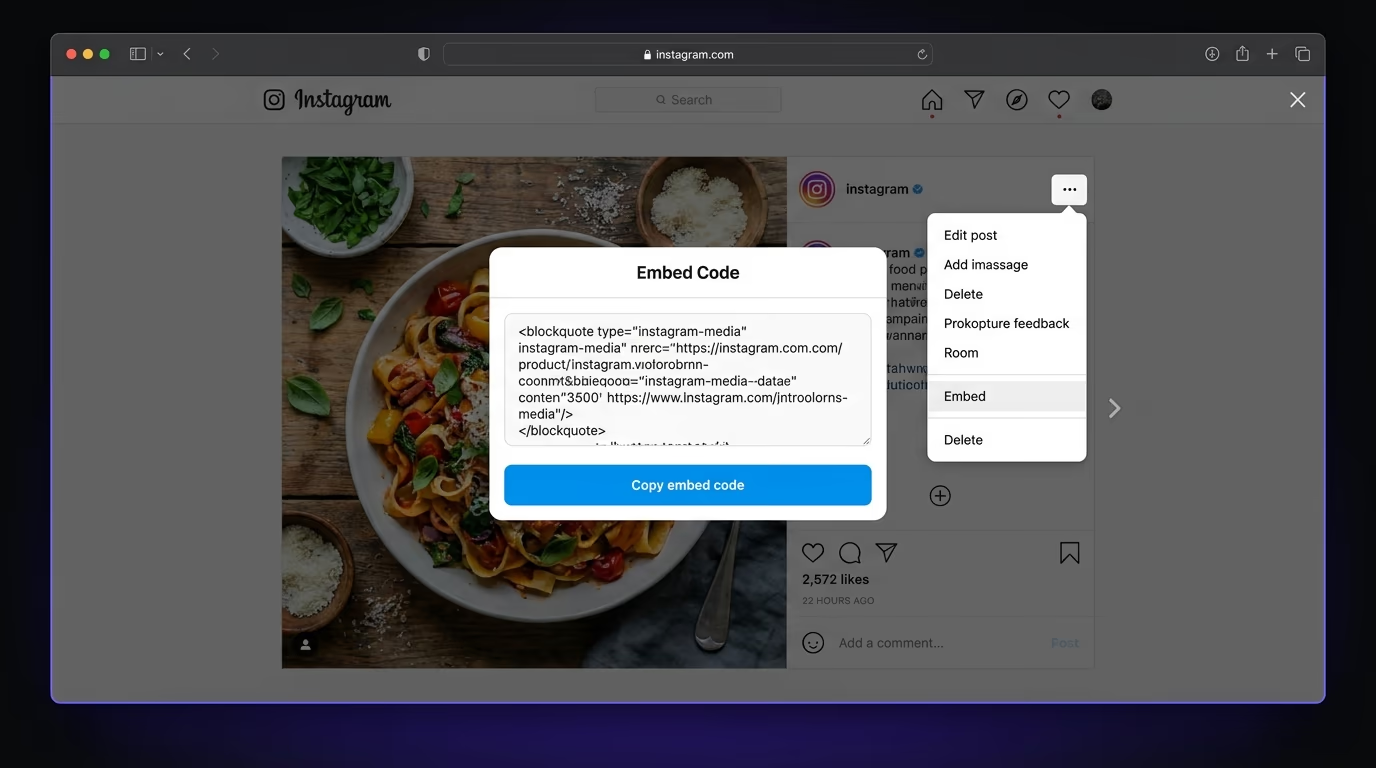
To grab the embed code, open the post you want on instagram.com, click the three dots in the top right, select “Embed”, and copy the HTML block Instagram generates. That block contains an <iframe> or a <blockquote> element plus a script reference to instagram.com/embed.js, which renders the post in place when the page loads. You paste that HTML into any CMS that accepts custom HTML blocks: WordPress’s Custom HTML widget, Shopify’s custom Liquid section, Webflow’s Embed element, or a plain HTML file.
The limitations are significant. The embed only works with public accounts, it displays one post per embed code (six posts means six separate embeds, each with its own HTTP request), and the content is static with no mechanism to update engagement counts or swap in newer posts. Every embed also loads Instagram’s JavaScript and tracking resources, which brings performance and privacy implications covered below.
That said, the native embed works well when you want to feature one specific post inside a blog article or case study. If you’re writing about a product launch and want to show the original announcement post, a native embed is the simplest approach and costs nothing.
Why Do Most Sites Use a Widget Instead?
The native embed breaks down the moment you want a feed rather than a single post, and that’s where widgets take over.
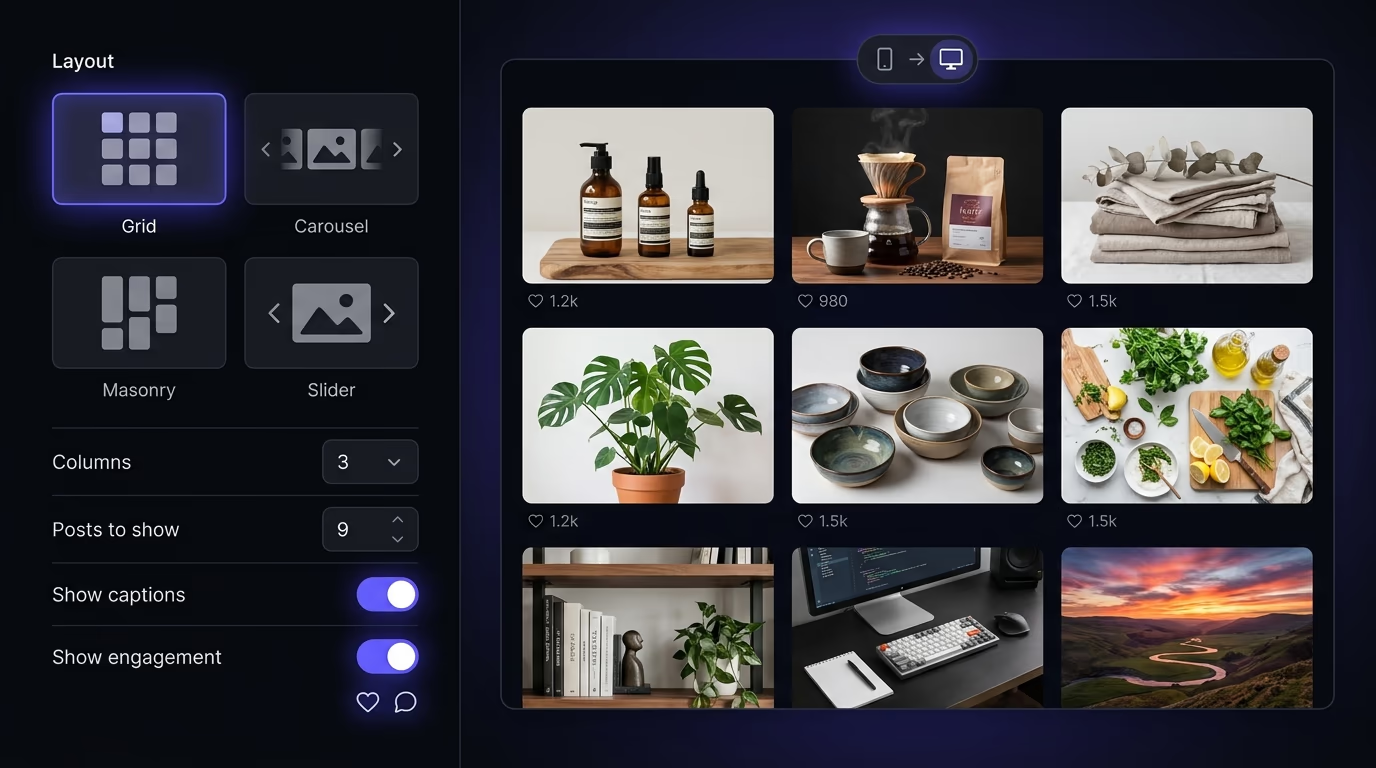
A widget connects to your Instagram account through the Instagram Graph API, or the newer Instagram API with Instagram Login, and both need a Business or Creator account. Meta shut the old Basic Display API down on December 4, 2024, which is why so many free feeds that ran on personal-account access broke that month. Personal accounts can no longer feed an embed through any official API in 2026, so the fix is the same everywhere: convert the account to Business or Creator in your Instagram settings, which takes a minute. Once connected, the widget fetches your most recent posts on a regular cycle and renders them in whatever layout you configured, without you touching anything after setup. Publish a new reel on Tuesday, and it shows up on your website by Wednesday morning.
The practical advantages over the native embed are substantial. You get layout control (grids, carousels, masonry walls, sliders), content filtering by hashtag or post type, full responsive sizing without writing media queries, and one lightweight script tag instead of six separate oEmbed requests. The performance difference is meaningful on pages that would otherwise need multiple native embeds to create a gallery effect.
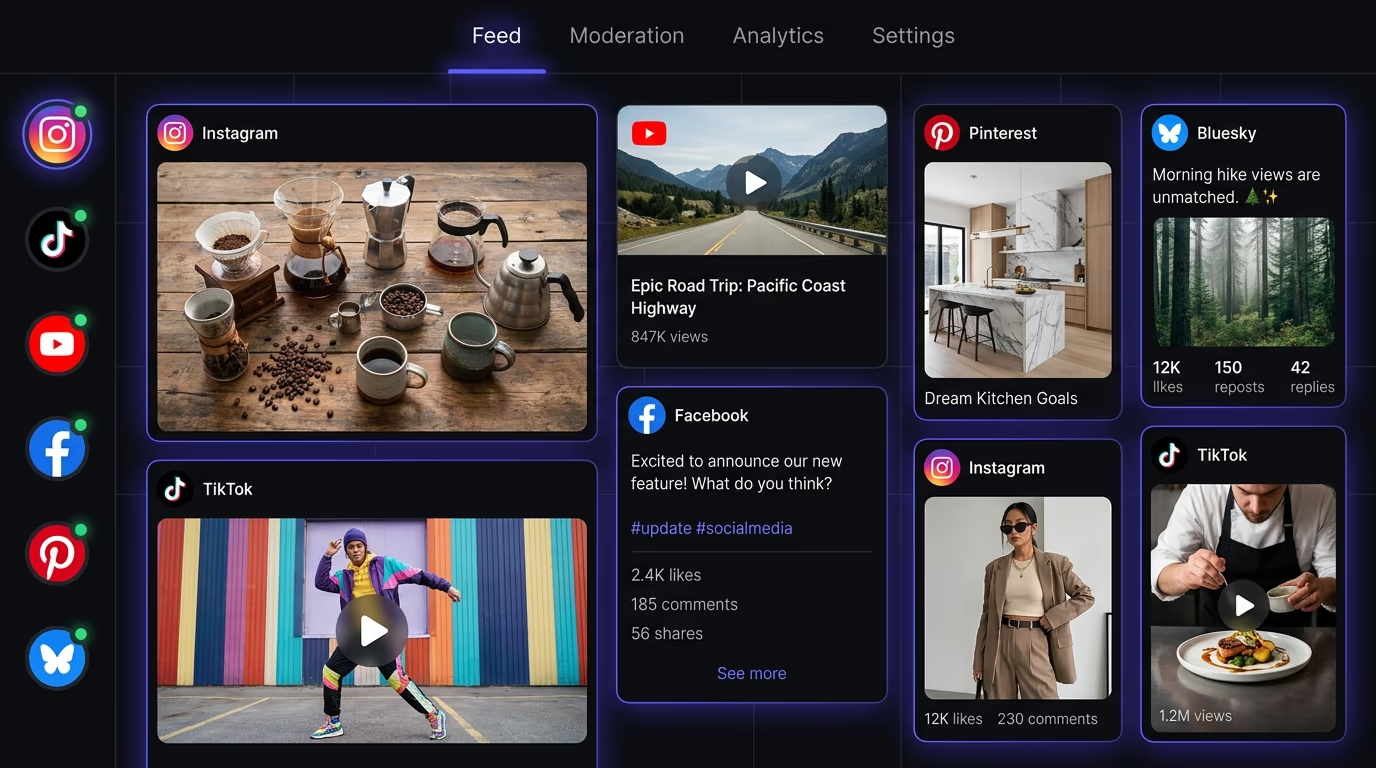
The trade-off is cost: native embeds are free while widget tools charge a monthly fee, typically $5 to $30 depending on refresh speed and layout options. Some tools charge per widget, which adds up if you’re also running a popup, a cookie banner and a form builder from separate vendors. Amabrik’s social feeds widget bundles Instagram, TikTok, Facebook, YouTube, Pinterest and Bluesky into one plan that covers the rest of the widget suite, so the cost doesn’t scale per tool. If you’re aggregating content from multiple social platforms into one unified display, that’s a social media aggregator approach, and it uses the same widget architecture.
Native Embed vs Widget: Feature Comparison
This table summarizes the practical differences between Instagram’s native embed code and a dedicated feed widget, so you can pick the right approach for your use case.
| Feature | Native Embed | Feed Widget |
|---|---|---|
| Cost | Free | $5 to $30/month (or bundled) |
| Posts displayed | One per embed code | Unlimited, auto-updating feed |
| Layout options | None (fixed card) | Grid, carousel, masonry, slider |
| Auto-updates | No (frozen at embed time) | Yes (pulls latest posts on a cycle) |
| Content filtering | None | By hashtag, post type, date |
| Responsive | Partial (iframe scales poorly) | Full responsive across breakpoints |
| Performance impact | Heavy (render-blocking script per embed) | Light (one async script, lazy images) |
| Account requirement | Public only | Business/Creator via API |
| Consent/GDPR control | Manual (block the script yourself) | Built-in consent gating |
| Analytics | None | Click and impression tracking |
How Do You Add an Instagram Feed to WordPress, Shopify or Webflow?
The installation process is nearly identical across platforms because the widget is just a script tag that you paste into your site’s HTML, and every modern CMS has a place for that.
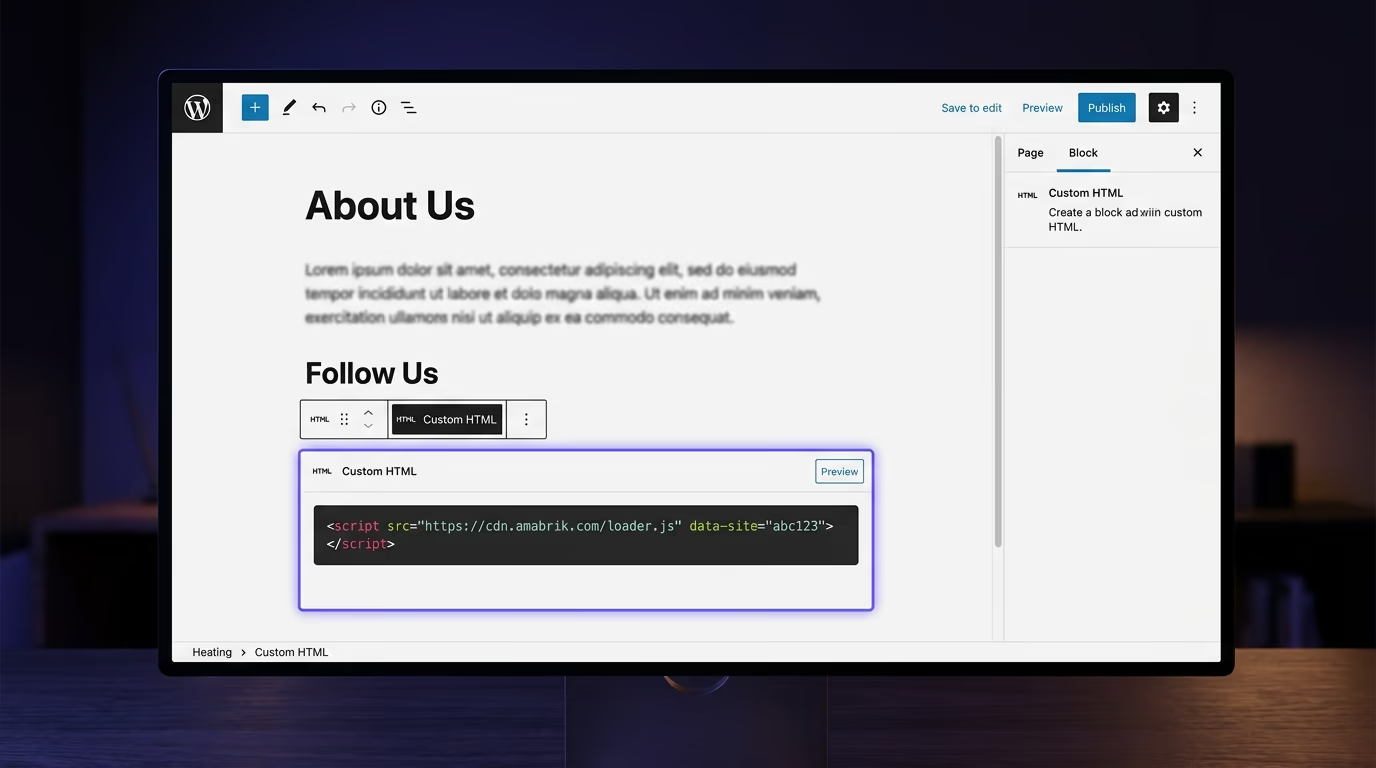
On WordPress, you have two options. The simpler one is pasting the widget’s script tag into a Custom HTML block on the specific page where you want the feed to appear. If you want the feed on every page (a footer feed, for example), paste the script into your theme’s footer template or use a plugin like Insert Headers and Footers to add it site-wide. For native embeds, WordPress’s block editor has a built-in Instagram embed block: paste the post URL, and WordPress handles the oEmbed call for you, though this still carries the single-post and static-content limitations.
On Shopify, you edit your theme and add the script tag to the section or page template where the feed belongs. Shopify’s Online Store 2.0 themes support custom Liquid sections, so you can create a dedicated “Instagram feed” section that you drag into any page through the theme editor. For store owners who don’t want to touch code at all, several widget tools also offer a Shopify app that handles the installation through the app dashboard, though the underlying mechanism is the same script injection.
On Webflow, you drop an Embed element onto your page’s canvas and paste the widget’s script tag inside it. Webflow renders custom code at the element level, so you can position the feed precisely within your layout, wrap it in a section with your own padding and background, and control its visibility per breakpoint. Webflow also supports Instagram oEmbeds through its native embed component, but the same single-post limitation applies.
The pattern holds for Wix (HTML iFrame or App Market widget), Squarespace (Code Block in the page editor), Framer (custom code component) and Ghost (HTML card in the editor). If the platform lets you paste a <script> tag, it supports a feed widget. The setup takes about two minutes regardless of the platform, which is why most widget tools advertise a “one-minute install” and aren’t exaggerating by much.
Does an Embedded Instagram Feed Slow Your Site Down?
It can, and the performance cost depends almost entirely on how the feed is loaded and where it sits on the page.
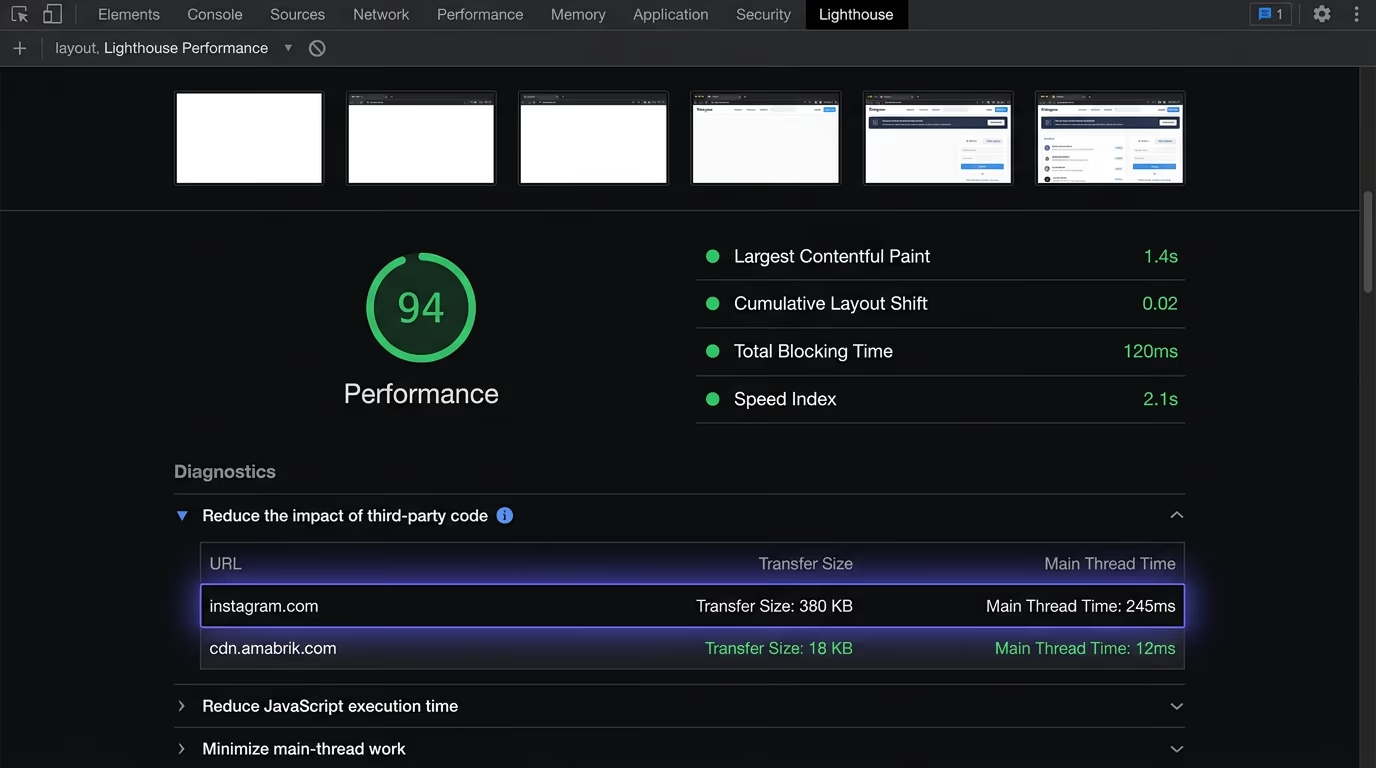
A native Instagram embed loads Instagram’s embed.js script, which is render-blocking by default, pulls in additional resources from Facebook’s CDN, and renders the post inside an iframe that triggers a separate page load with its own CSS, JavaScript and image requests. On a page with one native embed, this adds roughly 200 to 400 KB of transferred data and can push your Largest Contentful Paint (LCP) up by 500ms to 1.5 seconds depending on the visitor’s connection speed. On a page with six native embeds (a makeshift grid), multiply that by six: each embed is an independent iframe with its own resource chain.
A well-built widget avoids most of this cost by loading asynchronously, deferring its initialization until the page’s critical content has rendered, and pulling images from its own optimized CDN rather than Instagram’s full-resolution originals. The widget script itself should be under 25 KB gzipped (that’s the target for Amabrik’s widget chunks), and it should lazy-load images that sit below the fold so they don’t compete with your hero section for bandwidth.
The placement matters as much as the tool. An Instagram feed in your hero section will compete with your LCP element and push your performance scores down, regardless of how lightweight the widget is. An Instagram feed in your footer or a dedicated social section below the fold, loading through an IntersectionObserver that waits until the visitor scrolls near it, has a negligible impact on every Core Web Vital. Put the feed where it makes editorial sense, not at the top of the page where it fights your most important content for rendering priority.
If you care about your Lighthouse scores (and you should, because Google uses Core Web Vitals in its ranking signals), test your page with the feed enabled and disabled, compare the LCP and Cumulative Layout Shift (CLS), and verify that the delta is under one point. A feed that costs you three Lighthouse points is a feed that needs a lighter implementation or a lower position on the page.
What About GDPR, Cookies and Visitor Consent?
This is the section that every Instagram feed guide skips, and it’s the one that can actually get you fined.

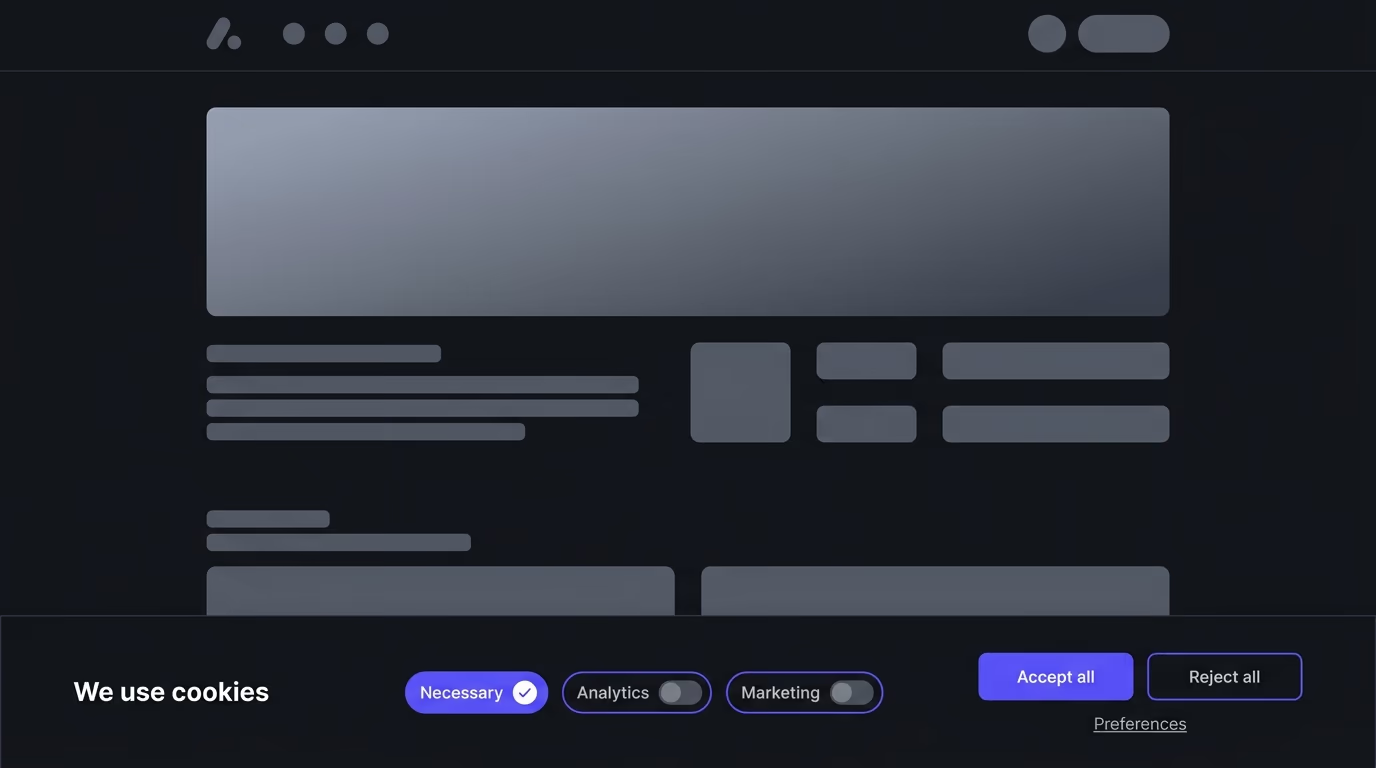
When you embed Instagram content on your page, whether through a native embed or a widget, the visitor’s browser makes requests to Instagram’s servers (a subdomain of facebook.com). Those requests can set third-party cookies in the visitor’s browser, and Facebook uses those cookies for cross-site tracking and ad targeting. Under GDPR (Europe), the UK GDPR, the Swiss nDSG, LGPD (Brazil), and California’s CCPA/CPRA, loading those tracking cookies without the visitor’s prior consent violates the law. The regulation doesn’t care that you’re just showing photos; it cares that third-party tracking scripts execute before the visitor has said yes.
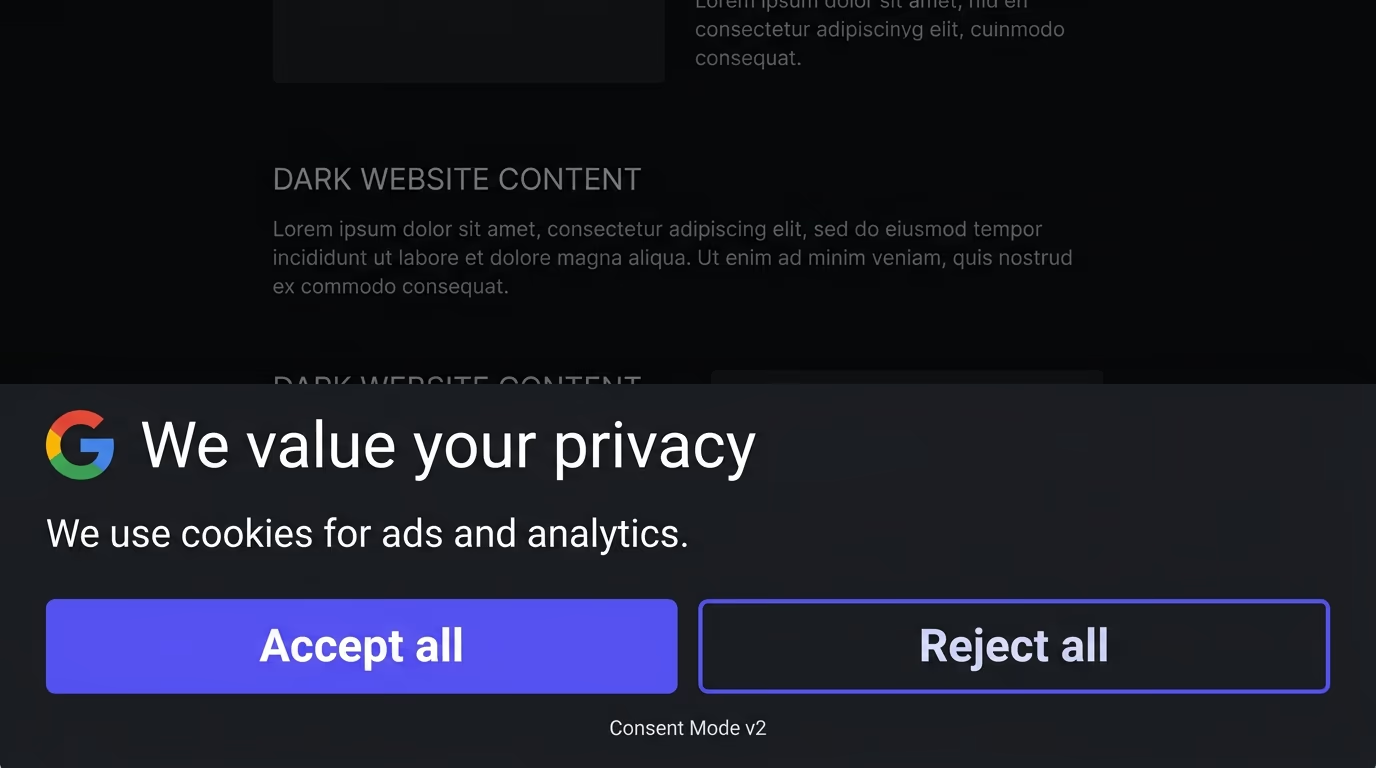
The compliant approach is to block the Instagram feed from loading until the visitor grants consent for marketing or social media cookies through your cookie consent banner. If you’re using Google Consent Mode v2, your consent tool should gate the feed script behind the ad_storage or ad_personalization consent signal. In practice, this means the Instagram feed section shows a placeholder (a message like “This content requires cookie consent to load”) until the visitor accepts, and then the widget initializes and renders the feed. Visitors who decline marketing cookies see the placeholder and can still browse the rest of your page without any tracking.
Most cookie consent tools let you categorize scripts by purpose. Register your Instagram feed widget’s script tag under “Marketing” or “Social Media” rather than “Necessary”, so it only fires after consent. If you’re managing this manually, wrap the script tag in a type="text/plain" attribute with a data-category="marketing" marker that your consent tool recognizes and activates on acceptance. The critical point is that the default state must be “not loaded”: if a visitor from the EU lands on your page and the Instagram feed fires before they’ve interacted with the consent banner, you’re in violation, and that’s true even if you show a banner that they haven’t responded to yet.
When Should You Skip the Instagram Feed?
An Instagram feed isn’t always the right call, and installing one reflexively because social proof sounds good can actively hurt your site.

Skip the feed if you don’t post regularly. A live feed that shows your last post from four months ago announces that your brand went quiet, which is worse than having no feed at all. If you post fewer than two or three times a month, either commit to a regular schedule before adding the feed, or use a different form of social proof instead.
Skip the feed if your audience doesn’t use Instagram. A B2B SaaS selling to enterprise procurement teams gains nothing from lifestyle photos. Think about where your actual audience is: if it’s LinkedIn, a feed widget showing LinkedIn content makes more sense; if it’s YouTube, embed your latest video instead.
Skip the feed if your site is already slow. A page with a Lighthouse mobile score of 60 doesn’t need another third-party script. Fix your Core Web Vitals first, then add the feed once the page can absorb the additional weight without dropping below acceptable thresholds.
And skip the feed on pages where the visitor has a specific task. Your checkout page, sign-up flow and lead capture landing page should focus on one action with no distractions. Save the feed for your homepage, about page, or a dedicated social section.
Start Showing Your Posts Where Your Visitors Are
If you post on Instagram regularly and your audience is the type that cares about visual content, an embedded feed turns your website from a static brochure into a page that updates itself. The key decisions are straightforward: use a native embed for a single featured post inside a blog article, and use a social feeds widget for a live, auto-updating feed on your homepage or social section. Load it asynchronously, place it below the fold, gate it behind cookie consent if you’re subject to GDPR, and skip it entirely if you don’t post often enough to keep it fresh.
The one thing the competing guides get wrong is treating this as a purely technical decision about which tool to install. The real question is whether an Instagram feed genuinely adds value to the specific page you’re putting it on, for the specific audience landing on that page, given what they came to do. If the answer is yes, install it, keep it lightweight, and let your social content work twice. If the answer is no, spend the real estate on something that actually moves your visitor toward a decision, like an exit intent popup or a well-placed form.
You can embed individual Instagram posts for free using Instagram's native embed code, but that only works one post at a time, won't update, and requires the account to be public. For a live, auto-updating feed that shows your latest posts as a grid or carousel, you'll need a third-party widget, and most of them offer either a free tier with limits or a paid plan that starts around $5 to $25 per month depending on the tool.
With a native embed, it doesn't, because you're pasting the HTML for a single specific post and it stays frozen at that post forever. With a widget tool like Amabrik's social feeds widget, the feed connects to your Instagram account and pulls your latest posts on a regular refresh cycle, so your website stays current every time you publish something new without any manual copy-pasting.
For native embeds, yes, the account must be public because Instagram's oEmbed endpoint only works with public content. For widget tools that connect through the Instagram API, you can use a private Business or Creator account because the widget authenticates directly with your login, but you'll need to convert a personal account to Business or Creator first in your Instagram settings.
It can if you don't handle it correctly. Instagram's embed scripts load third-party resources from Facebook's servers, which can set tracking cookies in the visitor's browser. Under GDPR and similar privacy laws, those cookies need consent before they load. If you're using a cookie consent tool like Amabrik's cookie consent widget, you should configure the Instagram feed script to load only after the visitor grants consent for marketing or social media cookies.
Indirectly, yes. The feed itself won't add indexable text content to your page because it loads through JavaScript and sits inside an iframe or shadow DOM that search engines largely ignore. The SEO impact comes from performance: a heavy, render-blocking Instagram embed script that increases your Largest Contentful Paint by a full second will hurt your Core Web Vitals scores, which Google does factor into rankings. A lightweight, async widget that lazy-loads below the fold has a negligible effect.
Virtually all of them. WordPress, Shopify, Wix, Squarespace, Webflow, Framer, Ghost, and any custom HTML site can embed an Instagram feed widget because the integration is just a small script tag pasted into your page's HTML. The widget renders itself through that script, so it works anywhere JavaScript runs, which covers every modern website builder and CMS on the market.